How to create a Username step by step
How to create an APP token step by step
Credentials
Carriers must share the following elements in order to run automated tracking with this GPS:
- Username
- APP token
This way, FleetRocket can add them to our Monarch integration and be able to obtain the locations of the units in transit.
How to create a Username step by step
To create a Username go to the Monarch website.
Once inside follow the steps described below:
- In the menu, click on more.
- Access the user manager.
- A list of all your registered users will appear. Click on add user at the top of the list.
- A new window will open in which you will have to fill in the new user profile.
- Fill in all the appropriate fields and click save.
Tips for choosing a good username:
- Use unique usernames for each user, in a consistent format that is easily remembered. We recommend FleetRocket.
- Use unique usernames for each user, in a consistent format that is easily remembered. We recommend FR8APP.
PLEASE SHARE WITH US THE USERNAME AND PASSWORD WHEN YOU'RE DONE
Complete tutorial available on the Monarch academy.
How to create an APP token step by step
To create an APP token follow the steps below:
- Login to your GPS portal.
- In the menu bar, access the account menu and then access manage users.
- Select third part access to API V2 functions.
- You will see a list (or grid) of API APPS. Click on API APP - CREATE NEW.
- A new window will open in which you have to write APP NAME and description, and click on save (save API APP)
- This will create a token as you can see in the image below.
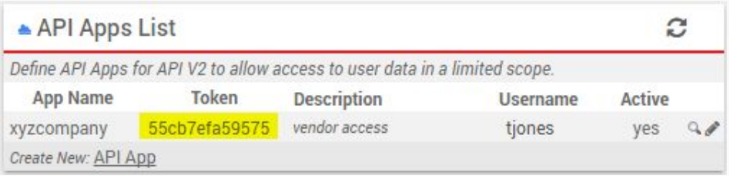
PLEASE SHARE THE TOKEN WITH US WHEN YOU'RE DONE
Complete tutorial available on the Monarch academy.